Jmeter tips & tricks – Tip 1

Over the years I have taught myself a few simple tips & tricks in Jmeter and I thought it might be nice to share them here. Some are simple, some are a bit more complex but I hope all of them will be useful to reuse for anyone. Where possible I will see if I can add an actual JMX file to download for your ease of use.

Tip 1: Crawling URLs

A URL crawler can be used for several things such as:

  1. verifying all URL’s on the site
  2. mimicking random browse behaviour and thus generating random load on the server

Setting up a crawler involves a few steps. First off you will need a thread group, as you need it with everything. Within that thread group you place an HTTP Request going to your base-page, usually the homepage of the web application.

Then the fun part starts, now we add a While Controller with a simple condition added to it:

LAST - exit loop when last sample in loop fails. If the last sample just before the loop failed, don't enter loop.

You can also make it with an empty Condition, however I prefer using this one so that if your script didn’t already break on an error, it will absolutely break on an error before hitting the loop.

Within the While Controller we now place another HTTP Request, where the path is set to

.*

Underneath the HTTP Request now add an HTML Link Parser.

You now should have a structure similar to this:

TestPlan
  |__ Thread Group
             |__ HTTP Request
             |__ While Controller
                       |__ HTTP Request
                                 |__ HTML Link Parser

The Link Parser does nothing other than extract links from the received HTML.

Next up is adding an If Controller to ensure the link we just grabbed indeed is working and if not, send the crawler back to the base page (e.g. the home page you defined in the first HTTP Request).
The If Controller needs some Conditions in order to do this. My preferred option is to add the following bit of JavaScript:

${__javaScript(!${JMeterThread.last_sample_ok})}

As a child node underneath this If Controller you now need to hang yet another HTTP Request, which sends the user back to your initial homepage. When filling in URL’s etc. please keep in mind that you should just keep life simple and make URL’s either read from a CSV file or simply add them as a global variable in the Test Plan.

The entire plan now should look like this:

TestPlan
  |__ Thread Group
       |__ HTTP Request > Home page
       |__ While Controller > Condition "LAST"
                 |__ HTTP Request > Path ".*"
                           |__ HTML Link Parser
                 |__ If Controller > Condition "JavaScript"
                           |__ HTTP Request > Back to Home page

Please be careful in using this script, this might lead to an unintended Denial Of Service attack if ran uncontrolled and with high load!

A sample JMX of this simple version of a web crawler can be found here.
Reusable components in JMeter – Part 2, Include Controller

In an earlier post I discussed why you might want to use reusable components in Jmeter scripts, in that post I only focused on one possible way of doing that, the Module Controller. For the second part, as promised, I want to discuss the possible uses of the Include Controller.

Why use the Include Controller?

The include controller pretty much does what it states, it allows you to include something external into your test scenario. With controller you can include other JMX files into one single JMX file. So imagine a similar scenario as in the previous post, where you create a JMX specifically for the registration on an application, but then through different channels.

Example: A given application has several ways to communicate to it:

  • Consumer webclient
  • Backoffice webclient
  • Mobile application (communicating via an API)

You can build a set of functional load scenarios for each side of the application, resulting in something like a frontend.jmx, backend.jmx and api.jmx

If you now want to have some full performancetests on the application you can combine these sets with the Include Controller into one big set without making it a huge, unmanageable JMX file.

How does it work?

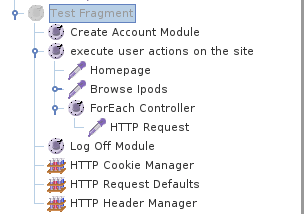
In the JMX files as mentioned above, instead of a Thread Group you now use a Test Fragment to place your test steps in. If you do happen to use a Thread Group the settings for the thread group from the original JMX will be overridden with the settings from the thread group where the JMX is included.

To avoid confusion, the Test Fragment should be used instead.

TestFragment

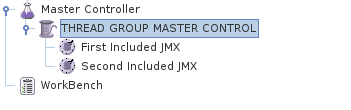
Given the existing JMX files you need to use, you create a new project in Jmeter, which will be your master controller. Once you have built the different scenarios you need for your full scale performance test, you consider how these three should work together. Running 3 different JMeter instances, each with its own JMX is an option, however it will make life so much easier if you can actually create a proper flow with the different JMX files.
This Script will be relatively simple and may end up looking something like this:
IncludeControllerYou can now easily control several scripts, from within one or more thread groups within 1 Jmeter instance while still keeping things maintainable and reusable.




JMeter and WebDriver – Why would you want to combine them?

3 Reasons to combine JMeter and WebDriver in performance testing a webapplication


What is JMeter good at?

The Apache Foundation states the following about JMeter:Apache JMeter

The Apache JMeter™ desktop application is open source software, a 100% pure Java application designed to load test functional behavior and measure performance. It was originally designed for testing Web Applications but has since expanded to other test functions.

So in other words, it’s a tool you can use to generate functional load on an application or a platform. This also immediately describes what it is good at: generating load. Yes if implemented well you not only generate dumb-load but also hit the functional application layers with the tool. But the basic function of JMeter is aimed at generating load and measuring the (server) response times during this load.

What does JMeter NOT do?

Despite being capable of generating functional load, JMeter does not render pages nor is it very well equipped to execute embedded JavaScript (it is simply not equipped to do that actually), therefore JMeter will not tell you anything (out of the box) about the render times of pages. Especially not about render times when the server is heavily overloaded by your scripts!

What is WebDriver good at?

SeleniumHQ gives a wonderful description of what Selenium (or nowadays WebDriver) does:
Selenium Logo

Selenium automates browsers. That’s it! What you do with that power is entirely up to you. Primarily, it is for automating web applications for testing purposes, but is certainly not limited to just that.

In short, what Webdriver does is just about anything that happens within your browser. It does render pages, it does execute JavaScript, it retrieves the pages as if an actual human was clicking on a website. So for fully functional automated testing (or checking to stick with the more correct terminology) WebDriver is perfect.

What does WebDriver NOT do?

Well, it is not quite good at generating load. Since WebDriver basically requires a browser (yes, it is possible to run it headless of course) it is very difficult to generate multiple (virtual) users. That would require a bunch of browsers to start up, when talking about 10 users that may seem feasible, however when talking about generating real load (say several 1000’s concurrent users) a bunch of browsers becomes a lot more difficult to arrange.

Why combine them then?

The logical question then indeed is, why would you combine them? Below I have set out 3 clear reasons why combining JMeter and WebDriver scripts can be an excellent idea.

  • Impact of server-side load on render-times;
    When the load on a server increases, the response times of various parts of a web application may increase as well. These increased response times can have implications on the render time of the web application. For example: a web application heavy with Ajax requests is put under load, the server response times increase, this may result in all Ajax-requests becoming slower, therefore making the website extremely unfriendly to the end-user. When you just run a JMeter script, this will hardly be noticed, and if you do notice it, you cannot express the impact it will have on the user. You can merely speculate about it.
  • Impact of server-side load on functional behavior;
    Given that the server is experiencing increased load and therefore the business-logic of the application is working hard to handle all requests effectively, it can be safe to say the underlying database may also be stressed and therefore responding slower than expected. Slower response times of both application-logic and database requests can result in buggy behaviour of the application. For example incomplete data returned, or worse, a time-out on data or application-logic. How does the application deal with that? How are these errors reported to the end-user? Will the application still function normally within the browser when certain aspects of the application platform are malfunctioning? The best answer to this is by testing the functionality thoroughly while the application is under load. An easy way to test this repeatedly and consistently is by automating these functional tests, for example using (part of) the automated regression test while the servers are under increased load.
  • Advantage of screenshots of fully rendered pages and possible errors with the application under load;
    As a result of the two points mentioned above, it may be extremely useful for both developers/system engineers and your customer to see errors on the pages affected by the increased server load, such as stylesheets not loading or not loading properly, JavaScript not loading, images missing etc. Screenshots (or screencaptures in movie format) will help make clear to the customer what the problem is and more importantly how big the impact on the end-user will be.

I have listed 3 reasons why combining JMeter and WebDriver can be a good idea. I’d love to hear your suggestions of more reasons to want to combine the two.

In a follow-up post I will go into more detail on ways to achieve an effective combination of JMeter and WebDriver running along side each other, well timed and generating consistent logging and results.

JMeter and remote servers – a tutorial

In my previous post I discussed why you might want to run your own servers for load & performance testing. In this article I will elaborate a bit on how to setup your machines. The Apache Jmeter pages of course have an explanation on how to setup remote tests. What I have heard from colleagues and what I experienced myself, is that that explanation is not always as clear and concise as may be preferred. This is my attempt at giving a readable explanation on how to setup JMeter with remote instances.

Some basic terminology

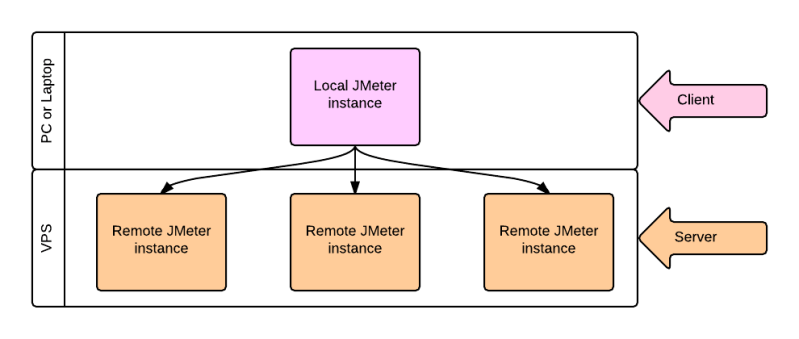
I will use the terms Local and Remote to identify the different sides of the configuration needed to get things working.

  • Local is to be read as your workstation, e.g. the machine you use to build your JMeter scripts.
  • Remote should be considered any machine that will be running a (headless) JMeter instance and will help generate load on an object.

jmeter Client - Service image

How to setup JMeter locally to work with remote machines

Continue reading

JMeter – private remote servers or a service?

Over the past year I have spent a lot of time in close collaboration with Apache JMeter. I used JMeter as a standalone platform, in collaboration with several tools out there and with my own servers. Over the next few posts I will elaborate a bit more on what I have learned from working with tools like BlazeMeter, Loadosophia as well as working with your own remote servers and Jmeter. On top of that I will share some things I consider good practices to use when working with JMeter and building elaborate test scenarios in it.

JMeter and remote servers

Apache JMeterJMeter is great as a stand-alone load generator, however the moment you need to generate a substantial load or a distributed load, you will require the use of more servers. There are several possibilities to add external servers to JMeter. You can use a loadgeneration platform such as BlazeMeter and Flood.io or you can choose to use your own machines (Disclaimer: I have only worked with Flood and BlazeMeter as services, so I only mention these two. There may very well be other services out there I am not (yet) aware of).

Why use your own remote servers?

Virtual Private ServerAlthough there are several commercial options to run JMeter tests from a cloud-platform, it might be useful to have your own servers running. Your own machines, for example Virtual Private Servers, will give you at least the following advantages, please bear in mind these are the main reasons for me to run private servers. It may very well be that you have different reasons for doing the same (I’d be happy to hear them btw!):

  • Availability within firewalls: Not all applications are available outside of firewalls. For quite a lot of companies it is not an option to allow external addresses, especially cloud services, within their firewalled environment. When this is the case in your organisation it can be very useful to have your own load generator hosted inside the firewall.
  • Geographical location: not each and every country has platforms available for load generation. Although platforms like Blazemeter have a lot of different locations available, it may very well be that your particular country is not available through a serviceprovider. However getting your own, hosted, machines within a country is generally not too difficult to do. Keep in mind though whenever you want to use something like a Virtual Private Server to verify with the hosting company whether they allow load generation from within their network!
  • Control: a fairly straightforward reason is in order for you to have full, unlimited control over the load generating servers. If you have your own (virtual) servers running you can easily adjust settings, properties and other things in order to make it fully match your (customers) needs.

Why use a service?

BlazeMeterflood.io

Even though there are quite some reasons for using your own machines, the advantages of using a service like BlazeMeter or Flood.io  are plenty, I will just highlight the few that for me have tipped the scales several times in favor of a service.

  • Maintenance: Setting up your own servers is time consuming and therefore not cheap. These servers need maintenance even though you quite likely do not constantly need them. A Service is just there. You buy a subscription, be it with a time constraint (monthly) or a load constraint (max amount of concurrent users) or something like that, but the service is simply at your fingertips. The moment you need it, you have it.
  • Multiple locations: the JMeter based services generally make use of the Amazon AWS cloud, thus giving you, the user, an immense amount of servers at your disposal. With this comes a huge worldwide distribution, which can be very advantageous for big world-wide used applications.
  • Support: both mentioned platforms have a very solid support base for their customers. If you have questions, if your tests seem to not run properly or you simply have issues getting something done, there generally is a good support platform available. You can use forums or the actual helpdesk, but either way, there is a good, solid, commercial support-base to help resolve your issues.

In the end, I choose per assignment what best fits my needs. Sometimes I use the VPS, sometimes I use a service. It is important you at least think about what best suits your needs for the test you are about to build and execute.